How to customize Hyperfolio
Hyperfolio is a personal portfolio website template for designers. This page shows how to make it yours, with Framer AI or by hand.
Get the template
Click the button at the bottom right of this page, or Remix on the Framer marketplace page. Framer copies the whole project into your workspace: pages, CMS, styles and components.
Build with the AI agent
Open the project in Framer and click the AI agent in the top toolbar. Type /design-system, then say what you want. The skill tells the agent which colours, text styles, buttons and layout rules to use. Try these prompts:
/design-system Add a Case Studies page with Project cards and Button/Fill.
/design-system Add a Process section to About with Service cards and Heading/H2 48.
/design-system Build a Tools page with Card / Bookmark items on Surface/Lilac.
/design-system Add a testimonials block to Services with the Testimonial Slider.
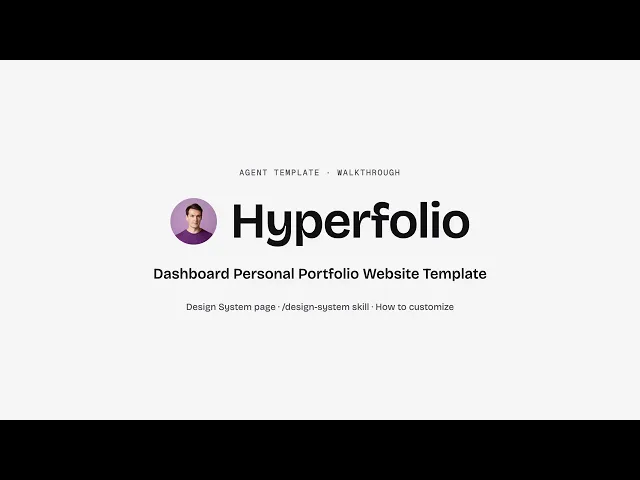
Watch the walkthrough
A short video of the editor: the Design System page, the skill, and a quick edit by hand.
Edit by hand
Colours: Assets › Colors. Styles are named by job (Brand, Text, Surface, Line, Base, State). Change one and every page updates.
Fonts: Assets › Text Styles. Bricolage Grotesque (headings, body and buttons). Change the font in a style to change it everywhere.
Text and images: double-click any text or image on the canvas.
Sidebar and menu: edit the Sidebar component; each page sets its active menu item in the Template layout control.
CMS: open the CMS to edit Project, Services, Blog, Shop and their categories.
Forms: select a form, then put your email in Send To in the right panel.
SEO: Site Settings › General for the site title and description. Each page has its own in Page Settings.
Design System page
Open Design pages › Design System in the left panel. It has six boards: How to Use, Colors, Typography, Components, Layout Rules and an Example Page built only from this system.